WordPress migration: 10 mistakes to avoid
By Pascal Cabana · October 26, 2026 · Redirects & SEO
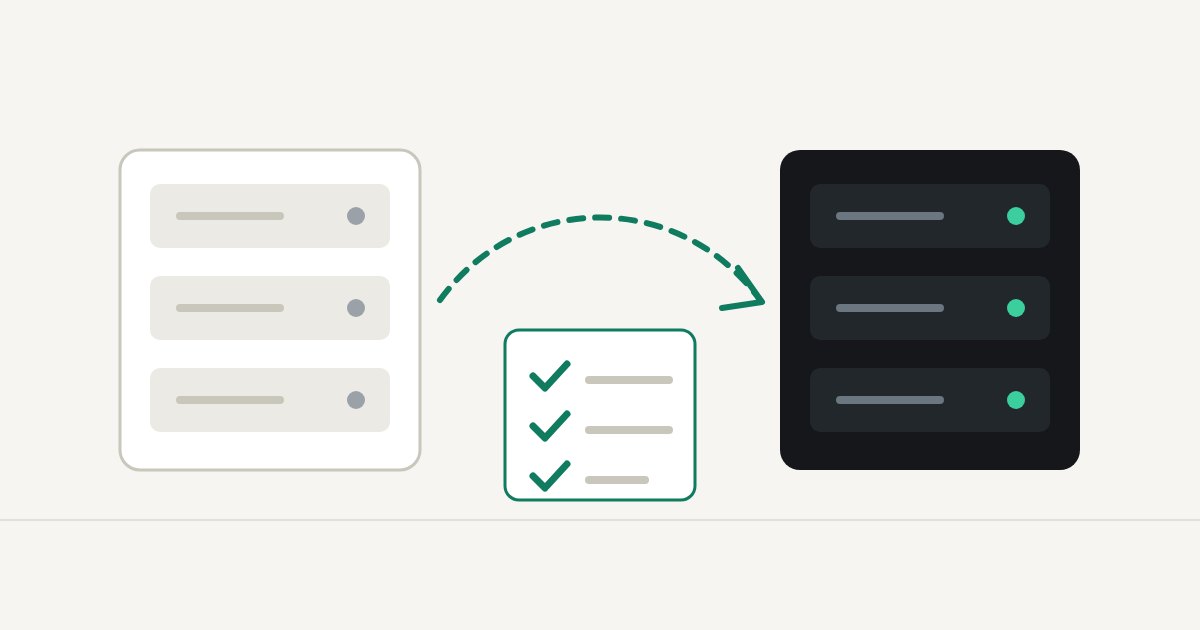
A WordPress migration can look successful when the homepage loads. The real test is whether orders, old URLs, forms and visitors arriving from Google still reach the right place.
Moving a site is more than copying files
You may be changing only the hosting infrastructure, or the domain name and page paths as well. Those scenarios require different plans. If URLs stay the same, you generally do not need a redirect map. If they change, create a clear mapping from each important old URL to its appropriate destination.
Ten mistakes worth avoiding
- No tested backup. A file archive is not enough: keep the database, configuration and a rollback plan. A backup is only useful when you know it can be restored.
- Skipping the staging check. Before switching DNS, test pages, contact forms, administrator access and the WooCommerce checkout if applicable. Lower the DNS cache duration (TTL) a day or two before the switch, and keep the old hosting active for a few days afterwards: some visitors will still reach the old server while DNS propagates.
- Changing the host, theme, domain and plugins together. Too many simultaneous changes make it difficult to troubleshoot unexpected failures.
- Forgetting WordPress URL settings. “WordPress Address” and “Site Address” must reflect the chosen configuration. Incorrect changes can lock you out of the dashboard.
- Redirecting everything to the homepage. Map each old product or article to a relevant replacement, and use permanent server-side redirects when URLs change for good.
- Stacking redirect rules. Cloudflare, the web server and a WordPress plugin can each introduce another hop—or a loop.
- Misconfiguring HTTPS. Verify certificates for the main domain and the www variant, even if www only redirects. Cloudflare Flexible mode can cause loops if the origin redirects HTTP to HTTPS (see the HTTP to HTTPS guide).
- Leaving staging noindex enabled. Review robots directives, robots.txt and canonical tags after the move.
- Ignoring email and background tasks. Test SMTP, forms, payments, backups, cron jobs and cache purges.
- Stopping at “the homepage works.” Watch 404 errors, Google Search Console, server logs, load times and conversions after launch.
Post-migration checklist
- Check the main domain across HTTP/HTTPS and www/non-www.
- Test a sample of important old URLs against the expected new destinations.
- Confirm a real product, contact form, customer account and test checkout where relevant.
- Review canonical URLs, the sitemap and accidental noindex settings.
- Monitor response times and server errors over the following days.
Use Redirect Audit as one of your checks
Redirect Audit checks domain variants, 301/302 codes, redirect chains, HTTPS and selected SEO signals. It does not automatically validate every migrated page: test individual legacy URLs and expected destinations separately.
For repair steps, consult the WordPress redirect guide and the redirect chains guide. Planning a site move and want help with hosting, rollback and post-launch checks? Get in touch.
Further reading: Google Search Central — site moves · WordPress — Migrating WordPress.
Need reliable WordPress hosting?
Migrations, performance and security, with personal support.